

ChatGPT & Claude Projects: Setup, Settings and Memory Guide
Set up ChatGPT and Claude Projects: naming, instructions, files, memory, sharing and privacy, with verified differences between the two.
Quick reference
Download the ChatGPT & Claude Projects Cheatbook
A short setup checklist and a copy-ready project instructions template. PDF, web versions only.
Introduction
Why Projects matter
Most people start using AI the same way: one long chat, then another, then thirty more. Within a month the useful conversations are buried. The same background gets retyped, reference documents get re-uploaded, and nobody on the team can find last week's draft.
Projects address that organization problem. In both ChatGPT and Claude, a Project is a workspace that groups related chats with the instructions and reference material those chats should share. OpenAI describes projects as keeping “related chats, files, and instructions together.” Anthropic describes them as “self-contained workspaces with their own chat histories and knowledge bases.”
This guide shows how to set up Projects in both products, how each handles instructions, files, memory and sharing, and where they differ. They are not interchangeable. Several differences matter for business use: which plans can share, whether a Project can be archived, and how memory crosses, or does not cross, Project boundaries. For the wider product map, see ChatGPT and Claude ecosystems explained.
Comparison
ChatGPT Projects vs. Claude Projects: quick comparison
As of October 14, 2026. Plan limits change; confirm them in the vendor pages listed in the references. For a broader product comparison, see Claude vs ChatGPT.
| Area | ChatGPT Projects | Claude Projects |
|---|---|---|
| Creating a Project | Sidebar → New project; enter a name, then pick an icon and color (OpenAI) | Projects → + New Project; enter a name and description (Anthropic) |
| Free plan | Free file cap of 5 per Project; number of Projects is unlimited on all plans | Available to free accounts, limited to five Projects |
| Naming and appearance | Name, icon and color at creation | Name and description. Claude cannot see them. No icon or color option is documented |
| Instructions | ••• → Project settings. Apply only inside the Project and override global custom instructions | Set project instructions → Save instructions. Apply to all chats in the Project. Interaction with account preferences is not documented |
| Files and knowledge | Project sources: Free 5, Go/Plus 25, Edu/Pro/Business/Enterprise 40 files. Separate Library for saved files | Project knowledge: 30MB per file, no file-count cap, but content must fit the context window. Paid plans get automatic RAG |
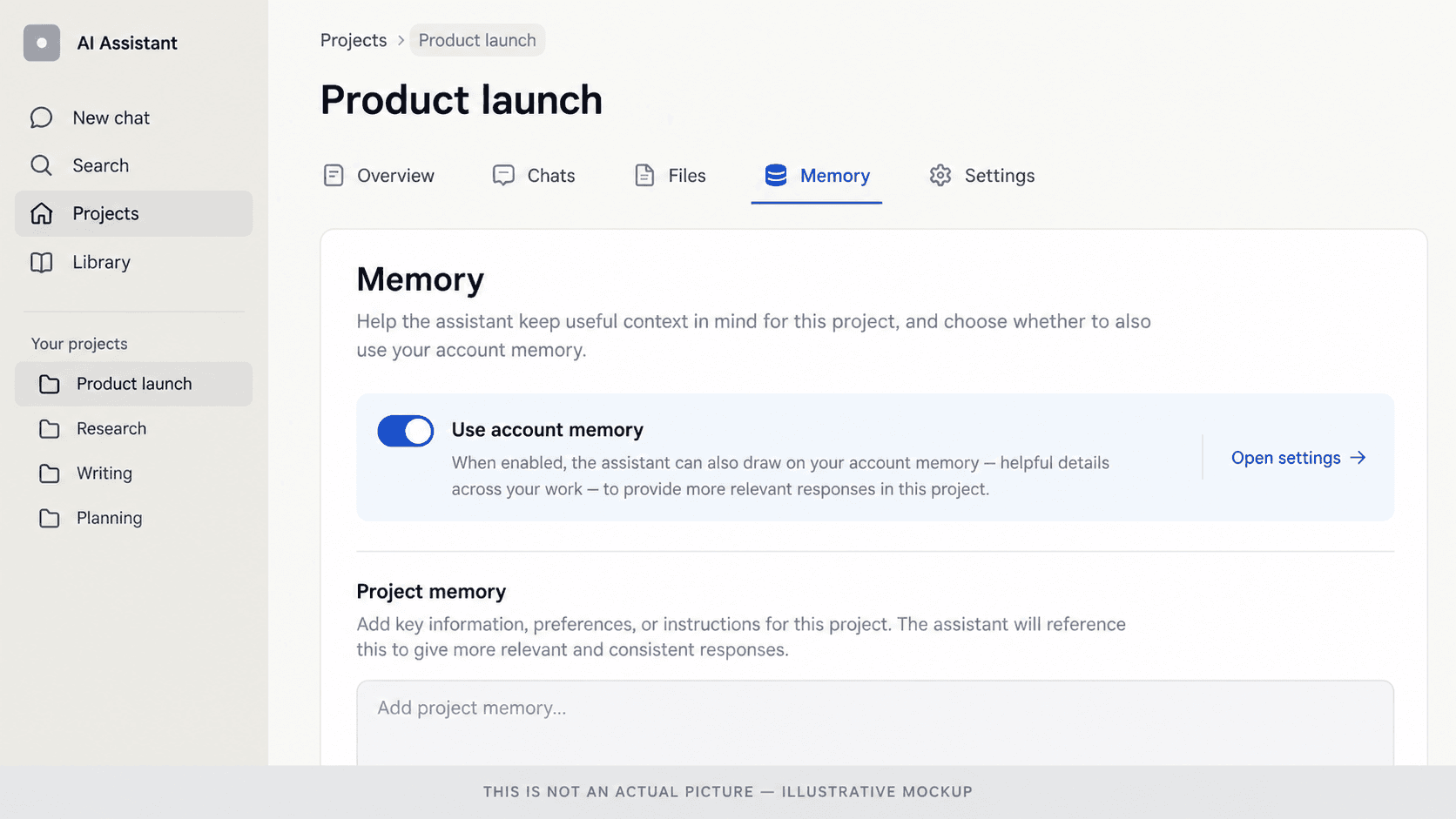
| Memory | Choose Default or Project-only memory per Project | Each Project has its own memory; a Use account memory toggle keeps it separate |
| Sharing | Free, Go, Plus, Pro, Business, Enterprise and Edu. Chat or edit access | Team and Enterprise only. Can view or Can edit |
| Archiving | No Project archive documented | Archive and unarchive supported |
| Deletion | Permanent. Removes chats, instructions and Project-only files. Library files are kept | Delete is available (archived Projects must be unarchived first). Consequences are not documented |
| Privacy controls | On personal plans, training depends on “Improve the model for everyone”. Business, Enterprise and Edu are not trained on by default | Consumer training depends on user choice, safety review or explicit programs. Commercial plans are not trained on by default. Incognito is not available inside Projects |
Fundamentals
What is an AI Project?
The simplest model:
A Project called “Work | Daily Operations” holds many chats, such as “Draft Friday client update” or “Summarize Monday standup notes”, each handling one task. The Project can also carry instructions that apply to every chat inside it and reference material the chats can draw on.
Two cautions. First, organization is not the same as unlimited shared context. Anthropic states that “context is not shared across chats within a project unless the information is added into the project knowledge base” (memory is a separate mechanism, covered below). In ChatGPT, instructions and files are shared, and memory behavior depends on settings. Second, Projects do not change the underlying model. They change what context the model starts with.
Tutorial
Setting up Projects in ChatGPT
Steps reflect OpenAI's help documentation. Anything not confirmed there is marked for a live check.
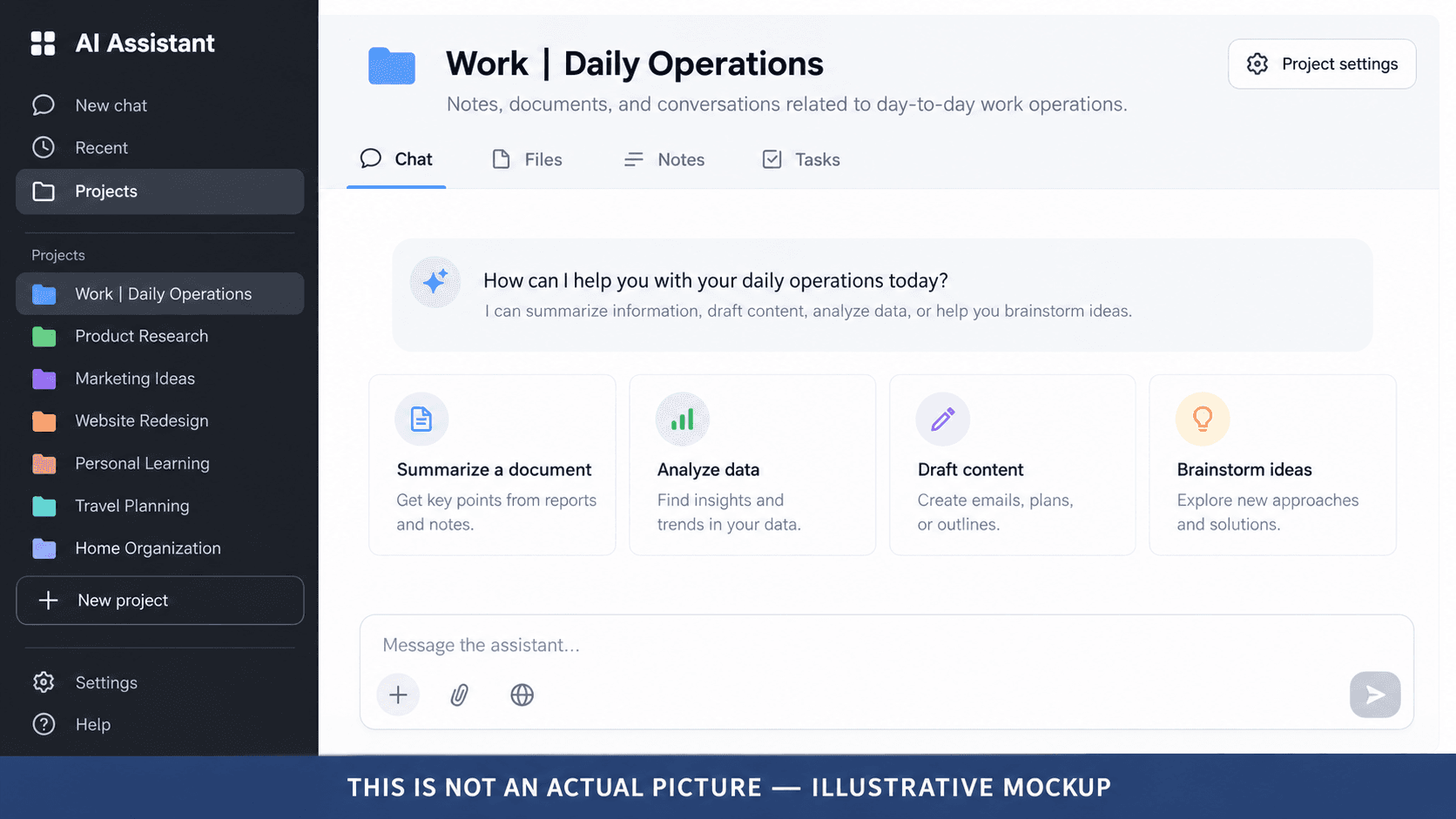
1. Create the Project
- In the sidebar, select New project.
- Enter a project name.
- Select an icon and a color.
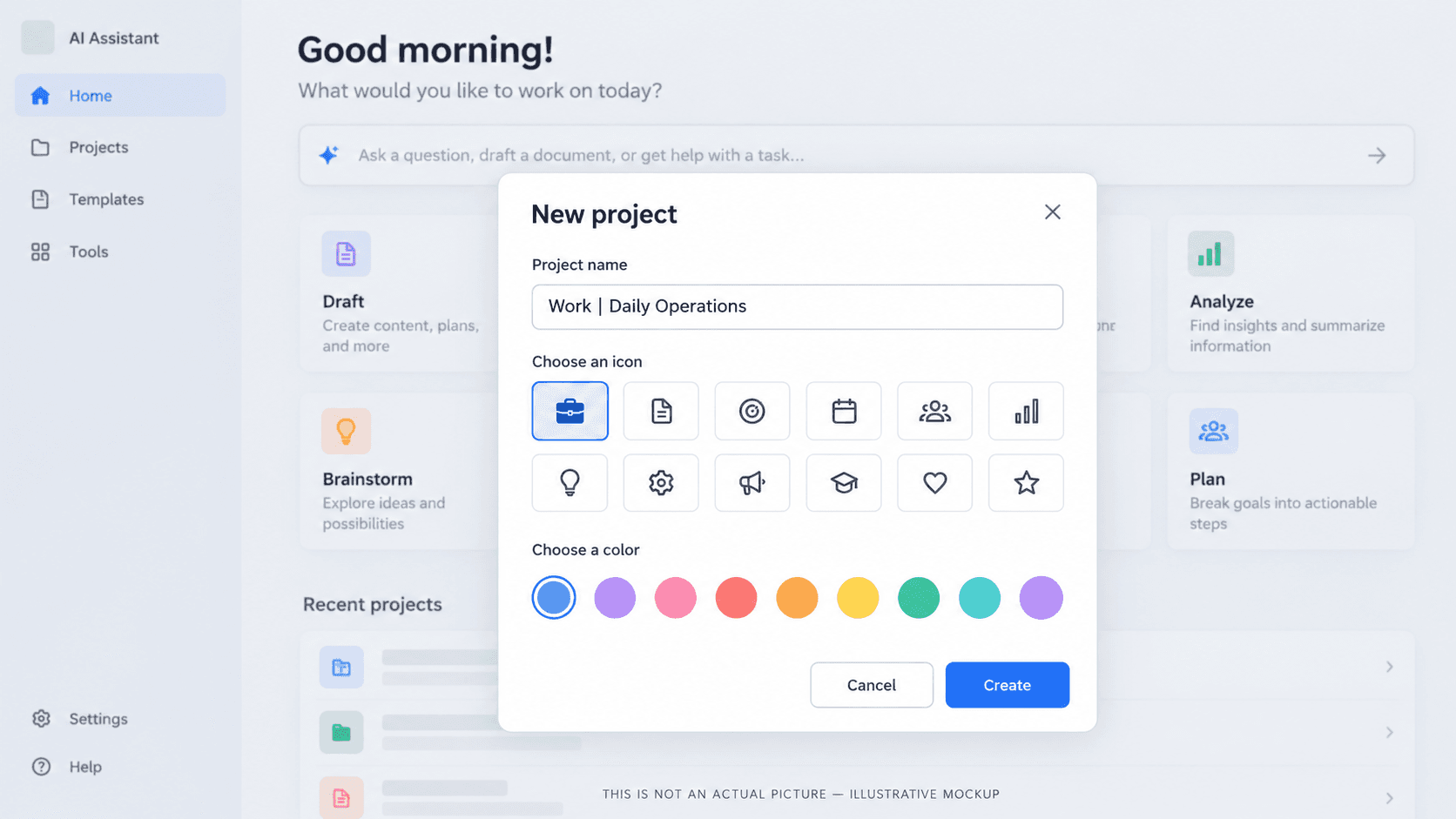
OpenAI also documents a memory choice (Default or Project-only) at creation. This detail was not verified in a live account and may vary by plan or workspace: where this choice appears in the creation flow for each plan.
2. Rename or change appearance later
OpenAI documents that owners of shared projects can modify the project name. This detail was not verified in a live account and may vary by plan or workspace: how to rename a Project, and whether icon and color can be edited after creation; the help article does not say.
3. Open Project settings and add instructions
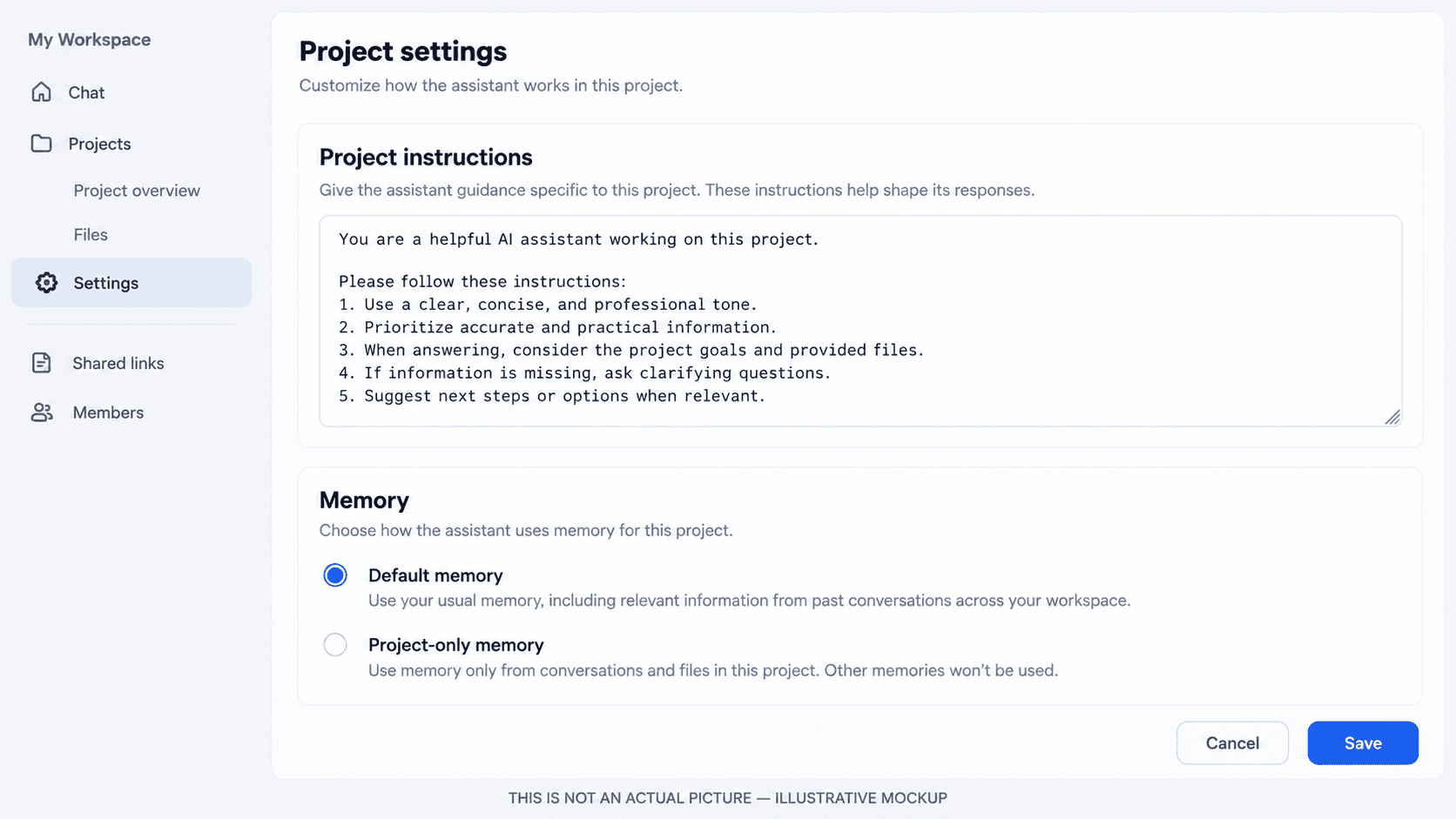
Select the more options menu (•••), then Project settings. OpenAI's example instruction: “Act like my marketing mentor. Be concise. Use bullet points. Ask clarifying questions.”
Project instructions “apply only within that project and override your global custom instructions.” OpenAI's Enterprise and Edu context table likewise lists custom instructions as “Not available (only project instructions)” for chats inside projects. No instruction-length limit is documented in the help article reviewed.
4. Add reference material
Upload PDFs, spreadsheets, documents or images, or paste text. After adding a file you can open it from the sources list to preview, download or delete it. Limits per Project:
- Free: 5 files
- Go and Plus: 25 files
- Edu, Pro, Business and Enterprise: 40 files
- Only 10 files can be uploaded at once.
You can also paste links to supported Google Drive files and folders or Slack channels as sources, connecting the app if prompted. OpenAI notes that Google Drive content added within a project is not synced in advance for retrieval.
If ChatGPT produces something you want to reuse, such as a decision note or summary, you can save that response as a project source. OpenAI lists the menu action as “Save to project / Add to project sources (label may vary).” This detail was not verified in a live account and may vary by plan or workspace: exact label.
5. Organize conversations
Start new chats inside the Project, or move an existing chat by dragging it onto the Project or choosing Move to project from its menu. Moved chats inherit the Project's instructions and file context. Use Remove from project, when shown, to move a chat back. Chats created with a GPT cannot be moved in. You also cannot add a temporary chat to a Project; saving it converts it to a regular chat first.
6. Pinning and Project home
This detail was not verified in a live account and may vary by plan or workspace: whether Projects can be pinned in the sidebar, and what the Project's main page is called; OpenAI's help article documents neither.
Tutorial
Setting up Projects in Claude
Steps reflect Anthropic's help documentation as of October 14, 2026. Anthropic is rolling out a new Projects beta, starting with Claude Code and select Pro and Max users. This guide covers the current chat version; your interface may differ if your account has been moved.
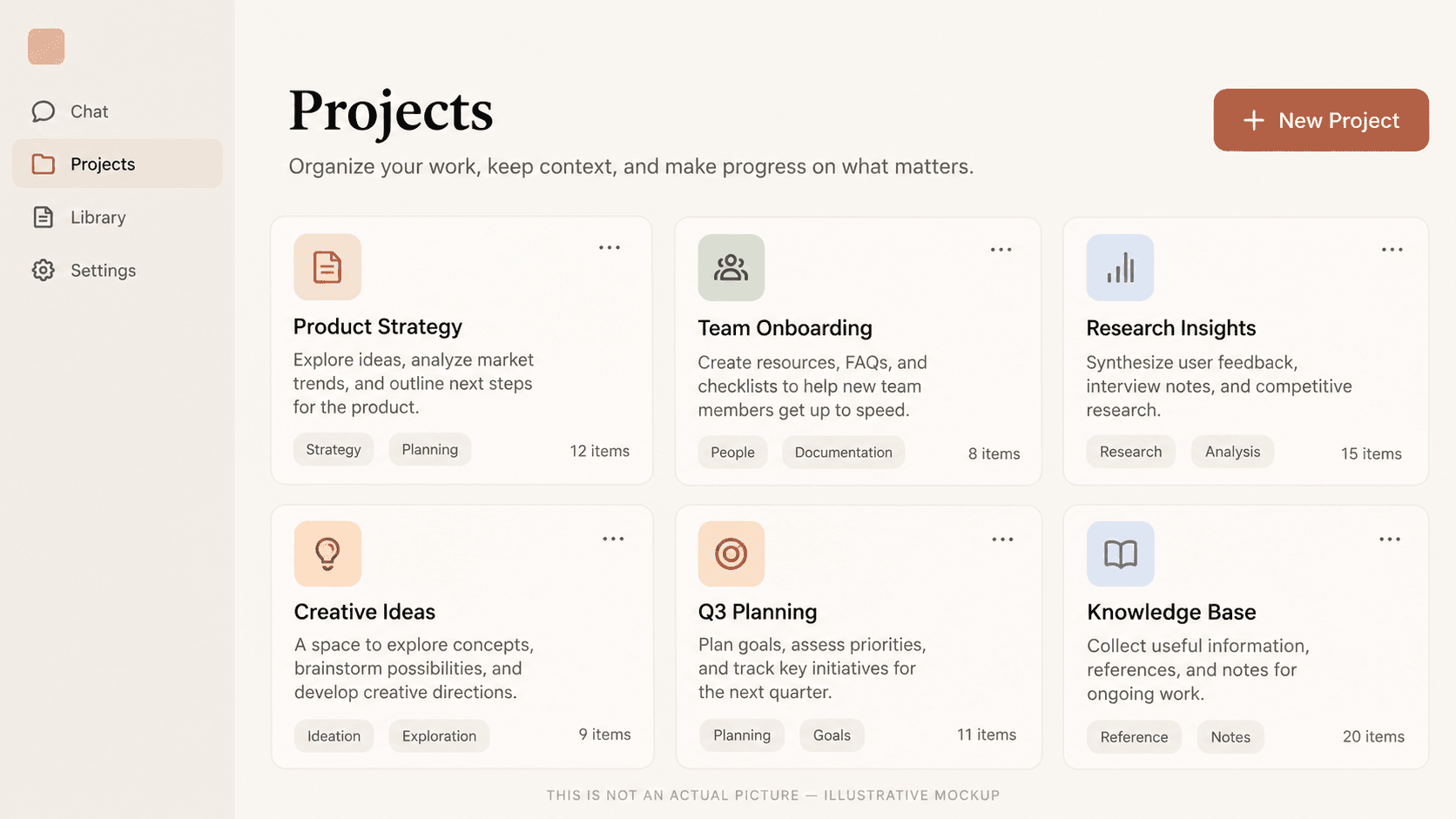
1. Create the Project
- Open Projects from the left panel, or go to claude.ai/projects.
- Click + New Project (upper right).
- Enter a name and description. Anthropic states that Claude cannot see these details, so do not put instructions there.
- On Team or Enterprise, choose visibility: Keep it private or Share with your broader organization, where enabled by administrators. This detail was not verified in a live account and may vary by plan or workspace: Anthropic's visibility article uses Public/Private wording; confirm current labels.
No icon or color options are documented for Claude Projects.
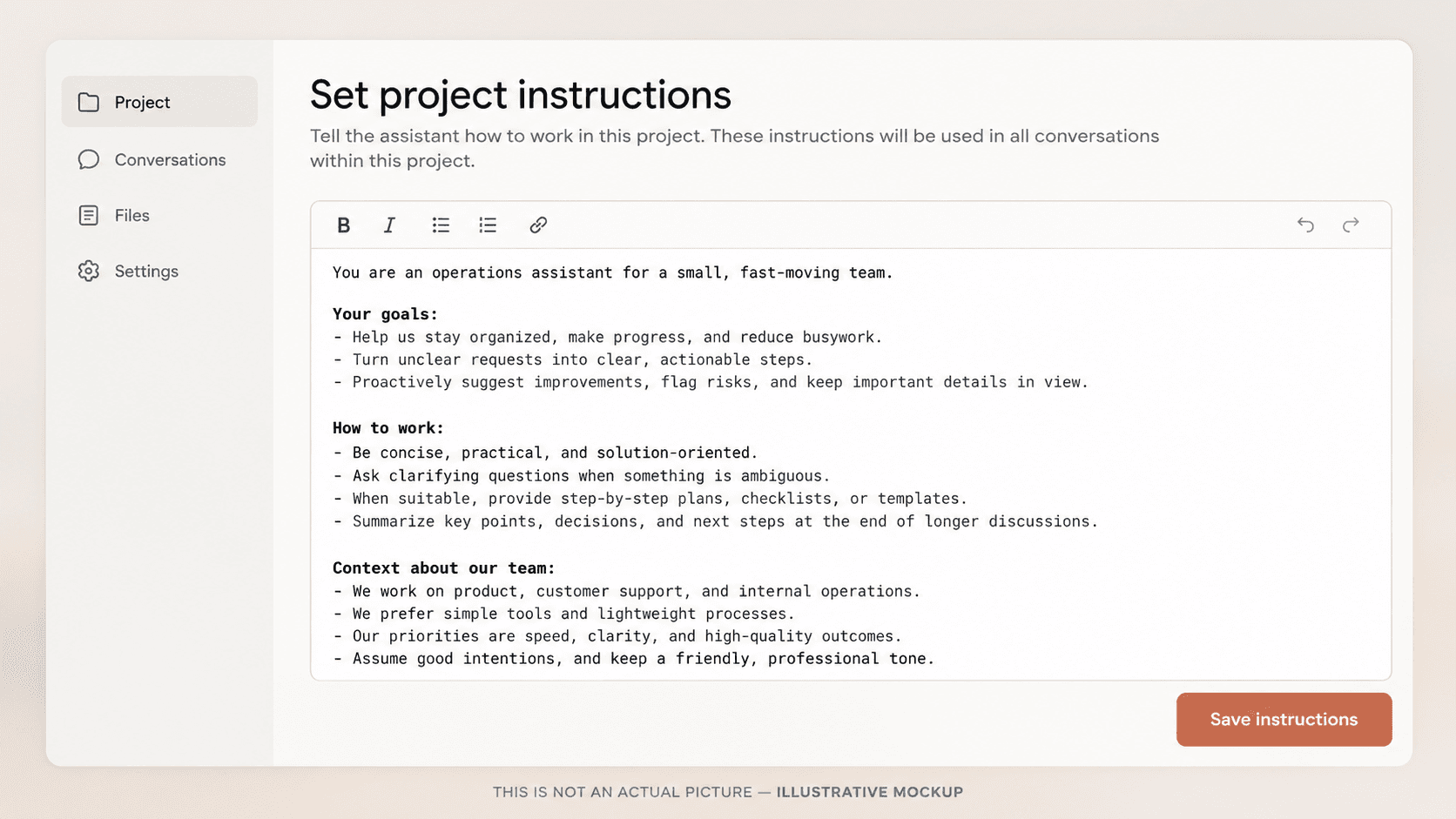
2. Add project instructions
Click Set project instructions, write your guidance, and click Save instructions. Claude uses them for all chats in the Project. No length limit is documented in the pages reviewed, and Anthropic does not state how project instructions interact with account-level preferences.
3. Add project knowledge
On the right side of the Project's main page, click + to add documents, text files or code snippets. Anything added is available in every chat in the Project.
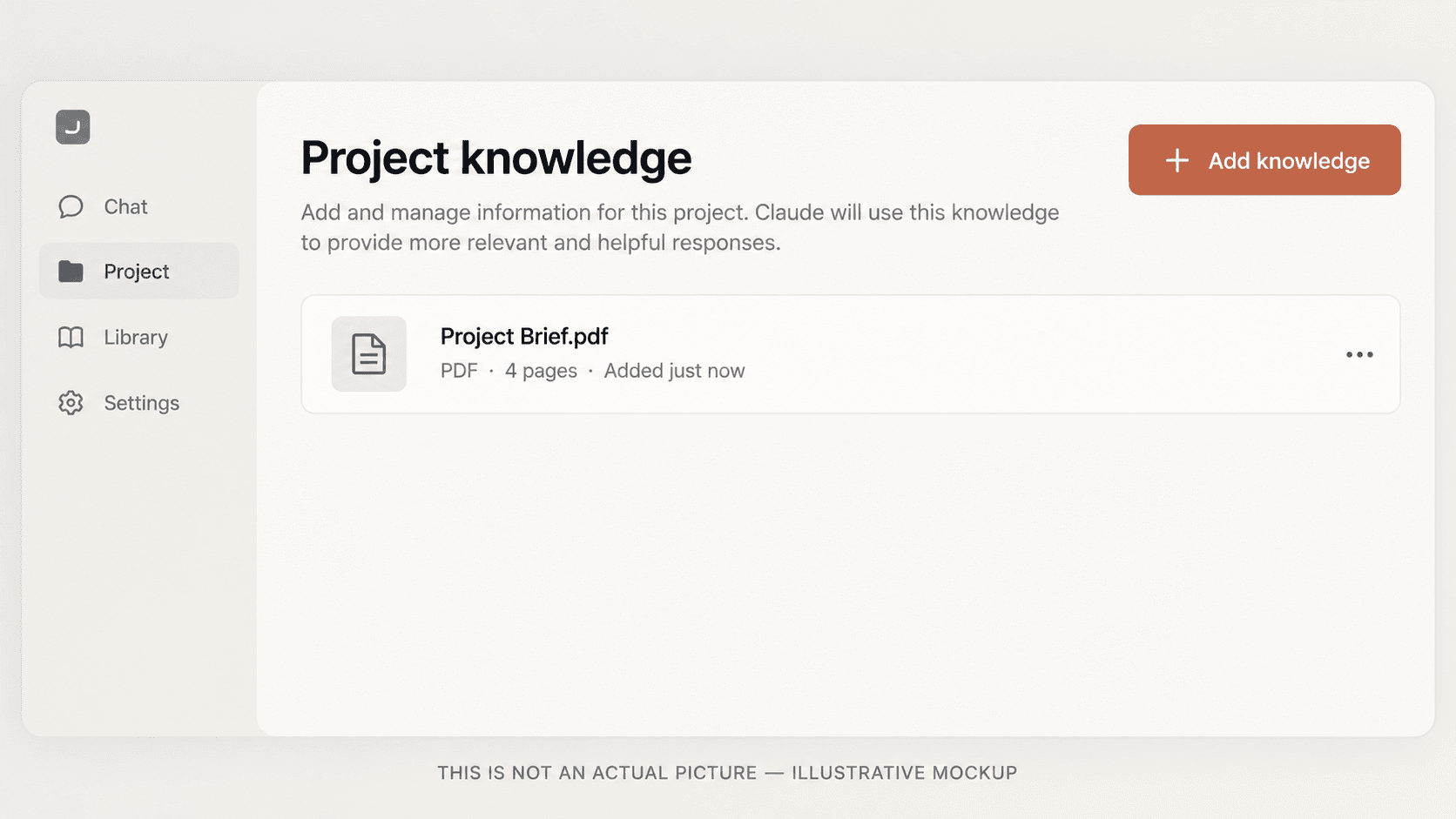
Limits from Anthropic's upload article: 30MB per file; unlimited file count, but total content must fit Claude's context window; text extraction only (except multimodal PDFs). On paid plans (Pro, Max, Team, Enterprise), when knowledge approaches the context limit Claude automatically enables RAG mode, which Anthropic says can expand capacity “by up to 10x.” A visual indicator shows when a Project is RAG-enabled, and Claude then uses a project knowledge search tool to retrieve relevant material instead of loading everything at once (source).
4. Organize conversations
Move a standalone chat in with the dropdown arrow next to its name → Add to project, then choose the Project in the modal. The same menu removes a chat from a Project or moves it between Projects.
5. Manage the workspace
- Star a Project from its three-dot menu on the Projects page or with the star icon inside the Project; starred Projects appear in the left panel.
- Archive from the three-dot menu in the Project and confirm. Archived Projects sit at the bottom of the list and in an archived tab; their conversations stay accessible.
- Rename: This detail was not verified in a live account and may vary by plan or workspace: Anthropic's article says it does not cover renaming.
Organization
Naming conventions and Project organization
This section is an AIBX recommendation, not vendor documentation.
Use a consistent pattern: Category | Project Name
- Personal | Morning Routine
- Personal | Getting Ready for Work
- Work | Start of Day
- Work | Daily Operations
- Work | End of Day
- Business | Client Management
- Research | AI Tools
Both products show Projects as plain lists, so a shared prefix keeps related Projects together and makes them easier to scan.
Routine-based Projects
Organized around recurring activities or times of day: start of day, daily operations, end of day. They suit individual workflows where the same checks and formats repeat.
Subject-based Projects
Organized around clients, research subjects, business functions or initiatives. They suit work that accumulates documents and decisions around a topic.
Keep scope focused. A Project whose chats share a purpose can use one set of instructions and one set of files well. A “General | Random Questions” Project is optional and may be counterproductive: unrelated conversations then share instructions and, depending on memory settings, context that does not fit them. If you want a catch-all, consider leaving unrelated chats outside Projects.
Instructions
Project instructions and maintaining a master template
Project instructions tell the model how to behave for every chat in that Project. Good instructions cover role, purpose, relevant context, response style, accuracy requirements, output format and clarification rules.
Illustrative example for Work | Daily Operations:
Role: You are an operations assistant for a small professional-services firm.
Purpose: Help me plan the day, draft internal communications, and document recurring procedures.
Context: Our team is ten people. We use a weekly status email and a shared task list.
Style: Plain language, concise, bullet points where useful. No marketing tone.
Accuracy: Do not invent facts about our clients or policies. If information is missing, say so and list what you need.
Output: Lead with a one-sentence summary, then actions with owners and dates.
Clarification: If the request is ambiguous, ask up to three questions before drafting.
Keep a master instructions file
Store your instructions in a file you control rather than only inside the product. Preferred formats are Markdown (.md) or plain text (.txt). A Word document (.docx) works if you prefer editing there, but it is not required. Use version names such as work-operations-instructions-v1.md, then follow a loop:
Paste the draft into the Project's instructions, run a few realistic chats, check whether the output follows the rules, then revise and bump the version.
Memory
Understanding Project memory and context
Several mechanisms can bring earlier information into a chat. They are different things, and the two products handle them differently.
| Mechanism | ChatGPT | Claude |
|---|---|---|
| Instructions | Shared by all chats in the Project; override global custom instructions | Shared by all chats in the Project |
| Files and knowledge | Project sources | Project knowledge |
| Automatic memory | Saved memories and chat history reference | Memory topics generated from chats, with separate project memory |
| Per-Project control | Default memory or Project-only memory | Use account memory toggle on the Project page |
| Past-chat search | Reference chat history setting | Search and reference chats (paid plans only) |
| Across Projects | Blocked by Project-only memory | Never reads another Project's memory |
| Temporary or incognito | Temporary chats cannot be added to a Project | Incognito is not available inside Projects; turn Memory off for one chat instead |
ChatGPT
OpenAI documents two memory settings per Project (Projects, Memory):
- Default memory: behavior depends on plan. On Enterprise and Edu, chats stay contained within the Project. On other plans, including Business, chats can reference both Project and non-Project conversations unless the other Project is set to Project-only.
- Project-only memory: your previously saved memories are not referenced in Project chats. Chats can reference other conversations in the same Project but not outside it, and chats outside cannot reference the Project.
You choose when creating the Project and can change it in ••• → Project settings → Memory → Save. OpenAI says changes “may take a few hours to take effect.” Switching to Project-only removes that Project's information from memory used outside it. On most plans, Reference saved memories and Reference chat history must be on; on Enterprise, Reference saved memories plus workspace memory. There is no global setting to make all Projects Project-only, and no list of Project memories. This detail was not verified in a live account and may vary by plan or workspace: current setting labels; OpenAI notes they vary by account.
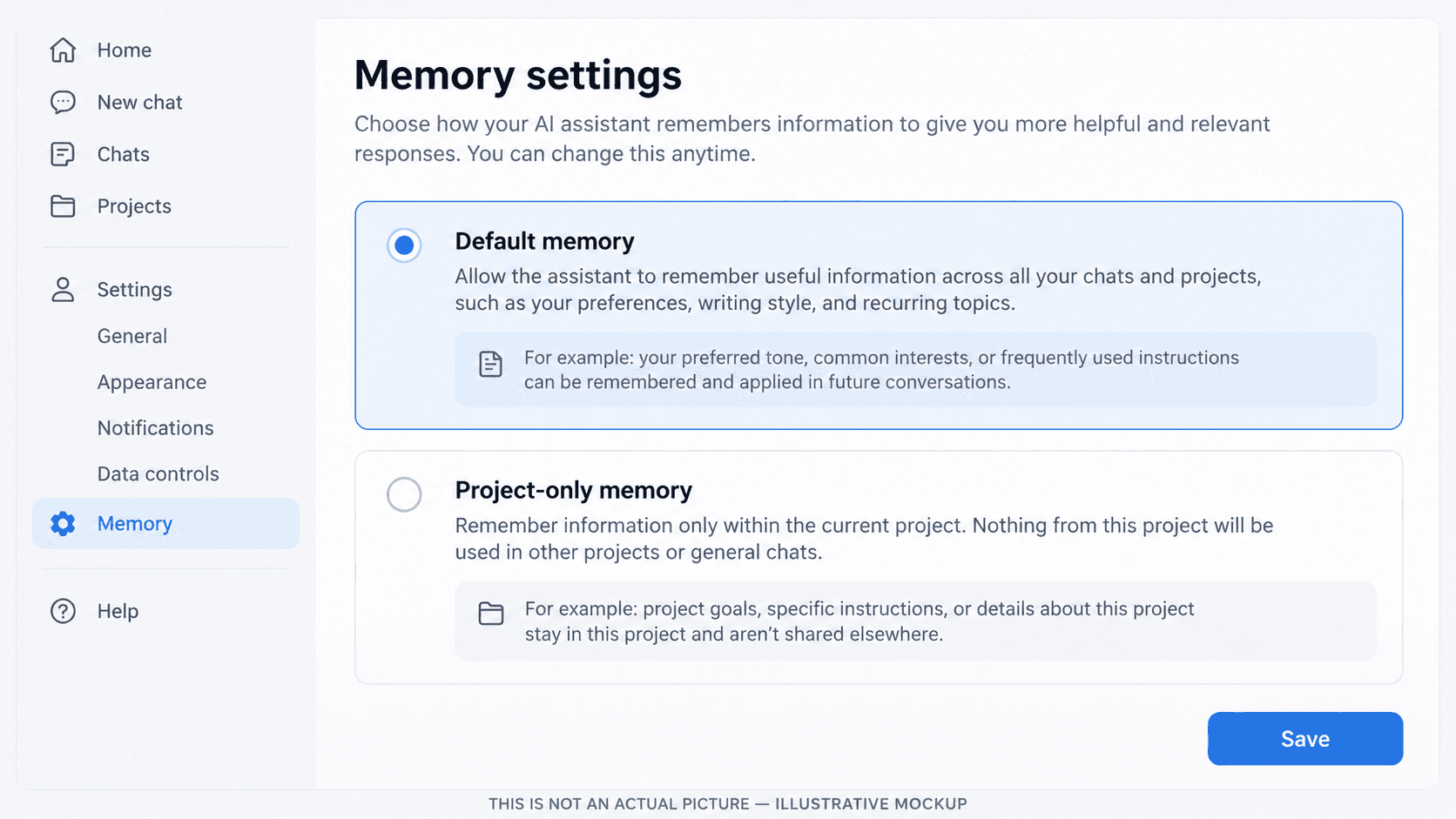
Two points matter for teams. Shared Projects are automatically Project-only and cannot be switched back to default, even after all collaborators are removed. And memory is not exhaustive: OpenAI says it “does not retain every detail from every conversation.”
Claude
Anthropic states that each Project has its own memory (create and manage, chat search and memory). While you work in a Project, Claude uses that Project's memory alongside your memory from chats outside Projects, but not memory from other Projects. New memory is saved to the Project and, if memory is on, Claude can reference it in chats outside Projects too. To keep a Project fully separate, turn off Use account memory on the Project's page.
Memory is on by default for Free, Pro and Max. On Team and Enterprise an owner must enable it, and members then turn it on. Manage it in Settings → Memory, where Topics can be viewed, edited or deleted, and memory can be paused or reset. Resetting permanently deletes all memories including Project memories. Chat search is a paid-plan feature and is limited to non-Project chats or to within one Project.
To keep one chat out of memory, turn off Memory in the + menu before sending the first message. That chat does not use or add to Project memory but stays in your history. The setting cannot be changed once the chat starts. Anthropic also says some information is never saved to memory, including government ID numbers and financial account numbers, and that sensitive topics are excluded by default unless you opt in. Treat this as product behavior, not a confidentiality guarantee.
Temporary and incognito chats
- ChatGPT temporary chats are not saved to history, do not create or update memories, and are not used for training while they remain temporary. OpenAI may keep a copy for up to 30 days for safety. You cannot add a temporary chat to a Project (source).
- Claude incognito chats are not saved to history or memory, are not used for training, and are retained for 30 days by default. They are available only outside Projects, so the ghost icon does not appear inside one. Incognito chats can still see your profile preferences (source).
Files
Files, libraries and knowledge bases
ChatGPT Project sources are files attached to one Project, capped by plan (5, 25 or 40 files). ChatGPT Library is a separate store for files you upload to or create in ChatGPT, with its own storage limits: Free 500MB, Go 4GB, Plus and Business 20GB, Pro 100GB (source). You can add a Library file to a chat through the composer menu. Library files are not deleted when a Project is deleted; files stored only in the Project are. OpenAI's help article does not describe how ChatGPT retrieves from Project sources. This detail was not verified in a live account and may vary by plan or workspace: per-file size limits for Project sources specifically; OpenAI lists 512MB per file for conversation and GPT uploads, with 2M-token and spreadsheet caps.
Claude project knowledge has a 30MB per-file limit and is bound by the context window until RAG engages on paid plans. Supported documents include PDF, DOCX, CSV, TXT, HTML, ODT, RTF, EPUB, JSON and XLSX (XLSX requires code execution and file creation to be enabled); images include JPEG, PNG, GIF and WebP. For project files, Anthropic says text extraction applies, except for multimodal PDFs.
Business use
Sharing, privacy and business use
What the vendors document
ChatGPT. Project sharing is available on Free, Go, Plus, Pro, Business, Enterprise and Edu. Invitees get chat access (see and interact with chats, files and instructions) or edit access (update instructions, upload or remove files, invite others but not remove members). Owners can remove members and change permissions. Members can view the Project's chats, files and member list (names and email addresses), and all members can download files. Owners can choose “Only those invited” or “Anyone with a link,” in which case any logged-in ChatGPT user with the link can join. Collaborator limits are plan-based (Free 5, Go and Plus 10, Pro 100; workspace Projects up to 100). Sharing a single chat from a private Project shares only that chat. Workspace owners can control who can create or share Projects (source).
Claude. Sharing is limited to Team and Enterprise plans, with Can view and Can edit roles. Members can see contents, knowledge and instructions and chat within the Project. Chats inside a shared Project remain private unless their author shares them. Admins can disable sharing, and archiving does not remove members or reset permissions (source). Anthropic's pages describe who can remove members differently. This detail was not verified in a live account and may vary by plan or workspace: which roles can remove access.
Training, retention and deletion
- ChatGPT personal plans: content may be used to improve models if “Improve the model for everyone” is on. For a shared Project, that applies only if the owner and every contributor have it on. By default OpenAI does not use content from Business, Enterprise, Edu or Healthcare workspaces for training (data controls).
- ChatGPT retention: deleted chats leave your view immediately and are scheduled for permanent deletion within 30 days, with security and legal exceptions, and cannot be restored. Files added to a Project, including a shared Project, are kept until the Project or file is deleted, then scheduled for deletion within 30 days (source).
- Claude consumer plans (Free, Pro, Max): chats may be used if you choose to allow it, if a conversation is flagged for safety review, or if you opt in explicitly, for example through a trusted tester program. Incognito chats are excluded. Thumbs up/down feedback can be stored for up to 5 years (source). Deleting a chat removes it from history immediately and from backend storage within 30 days; data you allow for training can be kept de-identified for up to 5 years (source).
- Claude commercial plans (Team, Enterprise, API): by default Anthropic does not use inputs or outputs to train its models, though feedback you submit or data you choose to allow can be used (source). Deleted conversations are removed from history immediately and from backend storage within 30 days (source).
- Memory and deletion: deleting a chat does not necessarily delete memory derived from it, in either product. OpenAI says deleting a chat alone “does not necessarily delete a separate saved memory,” and Anthropic says memory entries from a deleted conversation are not removed, though individual memories can be deleted at any time.
Maintenance
Managing Projects over time
- Rename and reorganize. Keep the naming pattern. This detail was not verified in a live account and may vary by plan or workspace: rename path in ChatGPT and in Claude; Anthropic's article does not cover renaming.
- Move chats. ChatGPT uses Move to project when available; Claude uses Add to project or the move option. ChatGPT notes that memory settings and workspace restrictions can limit which chats can move.
- Pin or star. Claude documents Star. This detail was not verified in a live account and may vary by plan or workspace: whether ChatGPT Projects can be pinned.
- Update instructions from your versioned master file, then retest.
- Remove outdated knowledge. In ChatGPT, open the file from the sources list and delete it; in a shared Project this removes it for everyone. In Claude, content can be added and removed at any time.
- Archive (Claude only). Archiving declutters finished work while keeping members and knowledge. Archived Projects must be unarchived before they can be deleted. ChatGPT has no documented Project archive, so rely on clear naming and delete only after copying out what you need.
- Delete. In ChatGPT, deleting a Project “permanently removes its chats and instructions, along with files stored only in the project.” Library files are kept, members lose access, and it cannot be undone. In Claude the steps are documented (••• → Delete → Yes, delete), but Anthropic's pages reviewed do not say what is removed or whether it is reversible. Treat it as permanent and export anything you need first.
Examples
Four practical Project examples
All examples are illustrative. They are not results from real deployments.
Example 1 — Morning Routine
- Project name
- Personal | Morning Routine
- Example chats
- Plan today's priorities; Reschedule around a meeting; Weekly review.
- Example instructions
- “Help me plan the day from a short list. Keep output under 150 words. Ask what time I must leave before scheduling.”
- Reference documents
- Recurring commitments list; preferred schedule template.
- Practical benefit
- You stop re-explaining preferences each morning.
Example 2 — Work Operations
- Project name
- Work | Daily Operations
- Example chats
- Draft Friday status email; Document the onboarding checklist; Summarize meeting notes.
- Example instructions
- See the master-template example above.
- Reference documents
- Style guide; standard operating procedures; email templates.
- Practical benefit
- More consistent tone and format across routine communications.
Example 3 — AI Research
- Project name
- Research | AI Tools
- Example chats
- Compare two tools against our criteria; Summarize a vendor's documentation; Update the source log.
- Example instructions
- “Cite the source for every claim. Separate documented facts from your inference. Flag anything you cannot verify.”
- Reference documents
- Evaluation criteria sheet; running source list.
- Practical benefit
- A consistent evaluation rubric and a record of where each claim came from.
Example 4 — Client or Business Project
- Project name
- Business | Client Management (or one Project per client)
- Example chats
- Prepare meeting agenda; Draft proposal outline; Summarize contract terms.
- Example instructions
- Define the client context, deliverable formats and tone. Add: “Do not state contract terms that are not in the provided documents.”
- Reference documents
- Engagement brief; approved terms summary; brand guidelines.
- Practical benefit
- Client-specific context stays together. Check sharing settings and your plan's data controls before uploading client documents.
Efficiency
Do Projects actually save time or tokens?
Projects can reduce repetitive prompting and improve consistency, because instructions and reference files travel with every chat. Those are organizational benefits. Token and cost savings are a different matter, and neither vendor documents them as a feature:
- OpenAI states that project access carries no extra cost and that “any credits or usage charges… apply to project chats the same as they do to regular chats.”
- Anthropic states that projects draw from your plan's usage like any other use of Claude. That sentence appears in the section on its new Projects beta, so confirm it for your interface (source). Large project knowledge can also increase what Claude processes, and RAG changes how it is retrieved.
Do not assume Projects lower your usage; long instructions and many files could add to it. AIBX recommends measuring your own workflow rather than relying on a general claim, and this guide makes no numerical savings claims. For usage habits specific to Claude, see Stop Burning Through Claude Tokens.
Checklist
Final setup checklist
- Confirm you are in the web version and note your plan.
- Choose a naming pattern (Category | Project Name).
- Create a Project with a focused scope.
- Write instructions in a versioned .md or .txt master file.
- Paste instructions into the Project and test in a new chat.
- Add only current, relevant reference files with clear filenames.
- Decide memory behavior (ChatGPT Default vs Project-only; Claude Use account memory).
- Review sharing permissions and who can see files.
- Check your plan's data controls before adding sensitive material.
- Schedule a periodic review: update instructions, remove stale files, archive (Claude) or clean up finished Projects.
FAQ
Frequently asked questions
Can I use Projects on a free plan?
Both products offer them. ChatGPT lists a 5-file cap per Project on Free; Claude limits free accounts to five Projects.
Does a ChatGPT Project override my custom instructions?
Per OpenAI, Project instructions apply only within the Project and override your global custom instructions.
Do Claude chats in a Project share what was said in each other?
Not through chat content alone. Anthropic says context is not shared across chats unless it is added to project knowledge. Separately, Project memory can carry information if memory is on.
Can I use incognito or temporary chats inside Projects?
No. Claude incognito is unavailable inside Projects, and ChatGPT temporary chats cannot be added to Projects.
Is it safe to upload confidential documents?
It depends on your plan, settings and your organization's policies. See the sharing and privacy section and consult your administrator.
What happens when I delete a Project?
ChatGPT: permanent removal of chats, instructions and Project-only files, as documented. Claude: not documented in the pages reviewed, so treat it as permanent.
Conclusion
Better workspaces, not smarter models
Projects improve the process of using AI, not the underlying intelligence of the model. They give related work a home, make instructions repeatable and keep reference material close at hand. The two products organize this differently: ChatGPT leans on per-Project memory modes and broad sharing availability, while Claude offers archiving, per-Project memory with an account-memory toggle, and sharing on business plans.
Name Projects deliberately, keep scopes narrow, maintain your instructions in a versioned file, load only relevant knowledge, and review everything periodically. Before putting business data in a shared Project, read the current vendor documentation for your plan. Wider context on the platforms is in Top AI Chat Platforms 2026.
Official references
Last verified October 14, 2026. Vendors change limits and labels; always check the current page.
OpenAI
Anthropic
- How can I create and manage projects?
- What are projects?
- Use Claude's chat search and memory
- Retrieval augmented generation (RAG) for projects
- Use incognito chats
- Manage project visibility and sharing
- Upload files to Claude
- Is my data used for model training? (consumer)
- Is my data used for model training? (commercial)
- How long do you store my data? (consumer)
- How long do you store my organization's data?
Related AIBX guides
Turn insight into workflow
Need help applying this inside real operations?
AIBX helps individuals and teams turn AI knowledge into governed workflows, reusable prompts, and practical implementation systems.
Related Articles
Continue Reading
Comparisons
Claude vs ChatGPT for Business | AIBX
A practical enterprise comparison of Claude and ChatGPT across writing, coding, reasoning, workflow automation, and business adoption.
Enterprise AI
ChatGPT and Claude Ecosystems Explained
A practical enterprise map of ChatGPT, Claude, models, coding agents, APIs, tools, and the architecture behind AI workflows.
Comparisons
Top AI Chat Platforms in 2026
A strategic enterprise ranking of the top AI chat platforms in 2026 including ChatGPT, Gemini, Claude, Perplexity, Copilot, and emerging AI ecosystems.
Workflow Systems
Stop Burning Through Claude Tokens
Learn how structured workflows and prompt optimization improve Claude efficiency and reduce wasted token usage.