

How to Install Terraform on macOS and Windows
Learn how to install Terraform on macOS and Windows using tfenv, WSL2, AWS CLI, VS Code, and enterprise Infrastructure as Code tooling.
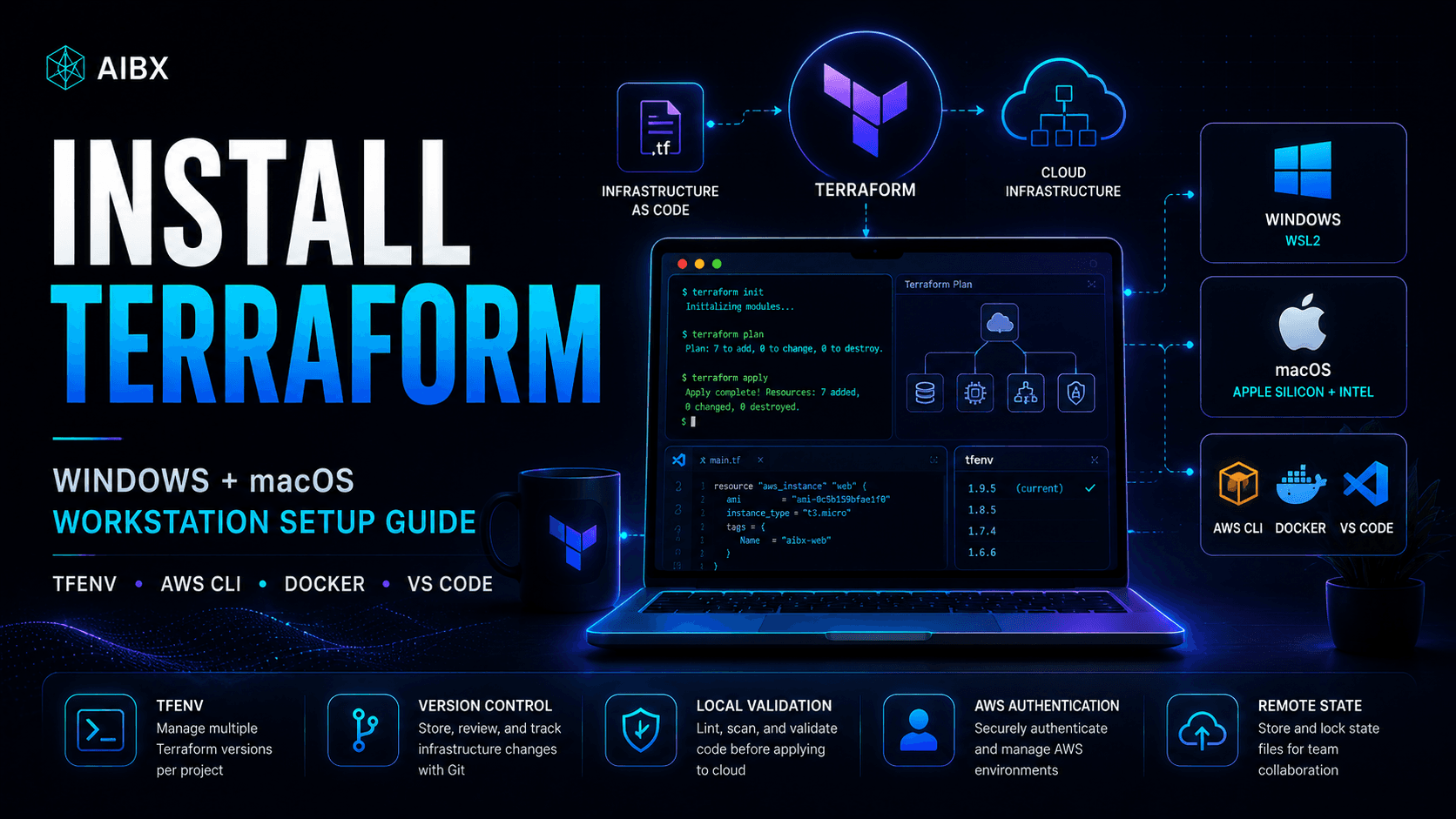
Executive Summary
Modern infrastructure engineering is no longer built around manually configuring cloud dashboards. Production environments now involve cloud infrastructure, Kubernetes clusters, networking, CI/CD systems, IAM permissions, scalable automation workflows, and AI infrastructure platforms.
Terraform solves this through Infrastructure as Code. Instead of provisioning infrastructure through graphical interfaces, engineers define environments using declarative configuration files that can be version controlled, reviewed, automated, and reproduced consistently.
This guide moves from theory into implementation. You will install Terraform, configure a professional workstation, set up Terraform version management, prepare AWS authentication, configure VS Code, and install validation and security tooling.
Free Download
Terraform Workstation Setup Guide
Keep the macOS, Windows WSL2, AWS CLI, VS Code, validation, and security setup steps handy while you configure your Terraform environment.
Terraform Series
Start with the Infrastructure as Code fundamentals.
If you are new to Terraform, read the foundation guide first. It explains Terraform Core, providers, HCL, state, and the standard write, plan, apply workflow.
Read What Is Terraform?What You Need Before Starting
The installation path is straightforward, but Terraform is an infrastructure tool. Make sure you have the basic access and accounts needed before configuring your workstation.
Why Professional Terraform Workstations Matter
Enterprise Terraform environments rarely rely on a single manually installed Terraform binary. Production infrastructure teams typically use version managers, linting tools, security scanners, Git-based workflows, and automated validation pipelines.
This prevents version drift, deployment inconsistencies, security mistakes, incompatible provider behavior, and unstable infrastructure deployments. A properly configured workstation improves long-term Infrastructure as Code reliability.
Recommended Terraform Workstation Stack
| Tool | Purpose |
|---|---|
| Terraform | Infrastructure provisioning |
| tfenv | Terraform version management |
| AWS CLI v2 | AWS authentication |
| Git | Infrastructure version control |
| VS Code | Terraform development |
| Docker Desktop | Containerized workflows |
| Python / Node.js | Automation tooling |
| tflint | Terraform linting |
| tfsec / Checkov | Infrastructure security scanning |
| pre-commit | Automated local validation |
| jq | JSON processing |
This stack creates a modern enterprise Infrastructure as Code environment similar to what professional DevOps and platform engineering teams use daily.
Install Terraform on macOS
This setup supports Apple Silicon and Intel-based macOS systems. Open the native Terminal application before beginning.
Step 1
Install Homebrew
Homebrew provides clean package management for Terraform, AWS CLI, Git, validation tools, and supporting development utilities.
/bin/bash -c "$(curl -fsSL https://raw.githubusercontent.com/Homebrew/install/HEAD/install.sh)"
brew --version
Step 2
Install Terraform using tfenv
Professional Terraform environments should use version management so teams can pin and switch versions safely across projects.
brew install tfenv
tfenv install latest
tfenv use latest
terraform version
Step 3
Install AWS CLI, Git, and core tooling
These tools support authentication, version control, automation scripts, JSON processing, and local development workflows.
brew install awscli git python jq
brew install --cask visual-studio-code docker
Step 4
Install Node Version Manager
Node.js is useful for automation tooling, infrastructure scripts, documentation pipelines, and cloud engineering utilities.
curl -o- https://raw.githubusercontent.com/nvm-sh/nvm/v0.39.7/install.sh | bash
nvm install --lts
nvm use --lts
Step 5
Install validation and security tooling
Linting and security scanning help catch syntax issues, unsafe defaults, and misconfigurations before infrastructure is deployed.
brew install tflint terraform-docs tfsec pre-commit
pip3 install checkov
Why tfenv Matters
Different infrastructure projects frequently depend on different Terraform versions. tfenv allows project-specific version pinning, safer upgrades, reproducible deployments, and cleaner team collaboration.
To pin a specific version for a project, add a .terraform-version file to the project root.
1.9.5Install Terraform on Windows Using WSL2
For professional Terraform workflows on Windows, WSL2 is strongly recommended. WSL2 provides native Linux tooling, improved compatibility, faster Terraform workflows, and behavior closer to production cloud environments.
Step 1
Install WSL2
WSL2 gives Windows a Linux environment that behaves closer to production infrastructure workflows.
wsl --install
wsl --list --verbose
Step 2
Install Windows Terminal
Set Ubuntu as the default terminal profile and run Terraform workflows inside Ubuntu rather than PowerShell.
winget install Microsoft.WindowsTerminalStep 3
Update Ubuntu and install core packages
Core Linux packages provide the shell, compiler, Python, Git, JSON, archive, and package-management utilities Terraform teams rely on.
sudo apt update && sudo apt upgrade -y
sudo apt install -y curl wget unzip git build-essential python3 python3-pip jq gnupg software-properties-common
Step 4
Install tfenv and Terraform
Clone tfenv into the Linux home directory, add it to PATH, then install and activate Terraform.
git clone https://github.com/tfutils/tfenv.git ~/.tfenv
echo 'export PATH="$HOME/.tfenv/bin:$PATH"' >> ~/.bashrc
source ~/.bashrc
tfenv install latest
tfenv use latest
terraform version
Step 5
Install AWS CLI v2
Terraform can use AWS CLI credentials during deployments, so AWS CLI should be installed inside WSL2.
curl "https://awscli.amazonaws.com/awscli-exe-linux-x86_64.zip" -o awscliv2.zip
unzip awscliv2.zip
sudo ./aws/install
aws --version
Step 6
Install validation and security tooling
Install Checkov, pre-commit, tflint, and tfsec inside the Ubuntu environment where Terraform projects will run.
pip3 install checkov pre-commit
curl -s https://raw.githubusercontent.com/terraform-linters/tflint/master/install_linux.sh | bash
curl -s https://raw.githubusercontent.com/aquasecurity/tfsec/master/scripts/install_linux.sh | bash
Critical Windows WSL2 Workflow Rule
Always store Terraform projects inside the Linux filesystem. Use paths such as ~/projects/ and avoid working directly under /mnt/c/.
Working across mounted Windows paths can cause filesystem performance issues, permission conflicts, Terraform provider instability, and VS Code synchronization problems.
Configure VS Code for Terraform Development
VS Code improves Terraform editing through syntax support, validation, source control visibility, AWS integration, Docker tooling, and WSL2 workflows.
| Extension | Purpose |
|---|---|
| HashiCorp Terraform | Terraform syntax, language server support, and validation |
| AWS Toolkit | AWS account and cloud integration inside VS Code |
| GitLens | Git history, blame, and review visibility |
| Docker | Container tooling for local development and supporting services |
| Remote WSL | Windows integration for editing Linux-hosted projects |
code --install-extension hashicorp.terraform
code --install-extension amazonwebservices.aws-toolkit-vscode
code --install-extension eamodio.gitlens
code --install-extension ms-vscode-remote.remote-wsl
Configure Terraform Shell Aliases
Infrastructure engineers often use aliases to accelerate common Terraform workflows. Add these to ~/.zshrc on macOS or ~/.bashrc in WSL2 Ubuntu.
alias tf='terraform'
alias tfi='terraform init'
alias tfp='terraform plan'
alias tfa='terraform apply'
alias tfd='terraform destroy'
alias tff='terraform fmt -recursive'
alias tfv='terraform validate'
Configure AWS Authentication
Terraform requires programmatic AWS access when deploying AWS infrastructure. For a local beginner setup, configure AWS CLI credentials and verify the caller identity before running Terraform.
aws configure
aws sts get-caller-identity
Terraform automatically uses these credentials during deployments. As systems mature, production workflows should move toward IAM roles, remote execution, CI/CD identity federation, and managed secret workflows.
Security Best Practices
Never hardcode AWS credentials, commit secrets into Git, or expose Terraform state publicly. State files may contain sensitive infrastructure data and should be protected carefully.
Production Terraform environments typically use IAM roles, remote state backends, secret managers, state locking, policy checks, and CI/CD identity federation. Security architecture becomes critical as Infrastructure as Code environments scale.
Recommended Project Structure
A clean Terraform workspace separates providers, variables, outputs, reusable modules, environment values, version pinning, and Git ignore rules.
terraform-project/
├── main.tf
├── variables.tf
├── outputs.tf
├── providers.tf
├── terraform.tfvars
├── .terraform-version
├── .gitignore
└── modules/
As environments grow, maintaining structured Terraform architecture becomes increasingly important for collaboration, review, reuse, and long-term operations.
Common Beginner Mistakes
Installing Terraform manually
Use tfenv so projects can pin Terraform versions and teams can avoid accidental version drift.
Working directly in production
Start in isolated development environments and promote infrastructure changes through reviewed workflows.
Ignoring validation tooling
Run terraform fmt, terraform validate, tflint, and security scanners before deployment.
Storing WSL2 projects under /mnt/c/
Keep Terraform projects inside the Linux filesystem, such as ~/projects/, for better performance and fewer permission issues.
Hardcoding secrets
Use secure credential workflows, IAM roles, secret managers, and CI/CD identity federation as environments mature.
What Comes Next?
Now that your Terraform workstation is configured, the next step is building your first real Infrastructure as Code deployment.
The next guide in the series will cover creating your first Terraform project, writing configuration files, using terraform init, understanding terraform plan, deploying with terraform apply, managing Terraform state, and safely destroying infrastructure.
Final Thoughts
Terraform is no longer a niche DevOps utility. It has become foundational infrastructure technology across enterprise cloud operations, platform engineering, Kubernetes orchestration, automation engineering, AI infrastructure systems, and modern DevOps workflows.
A properly configured Terraform workstation establishes the operational foundation required to build scalable Infrastructure as Code environments safely and consistently.
Once infrastructure becomes programmable, deployments become reproducible, environments become version controlled, operations become scalable, and cloud infrastructure becomes automatable. That shift changes modern infrastructure engineering.
Turn insight into workflow
Need help applying this inside real operations?
AIBX helps individuals and teams turn AI knowledge into governed workflows, reusable prompts, and practical implementation systems.
Related Articles
Continue Reading
Technology Systems & Infrastructure
What Is Terraform? Infrastructure as Code Explained
Learn what Terraform is, how Infrastructure as Code works, and why it matters for DevOps and cloud automation.
Technology Systems & Infrastructure
What Is Docker? Beginner Guide | AIBX
Learn what Docker is, how containers work, and why it matters for AI workflows, development environments, and automation.
Technology Systems & Infrastructure
How to Install Docker on Windows and Mac (2026 Guide)
Learn how to install Docker on Windows and Mac, including Docker Desktop, WSL2, Docker Compose, verification steps, and modern AI development workflows.
Technology Careers & Learning
The Complete Technology Career Roadmap (2026) | AIBX
A 2026 technology career roadmap covering IT, cloud, DevOps, platform engineering, cybersecurity, data, AI operations, and certifications.